What Is Candidate Mode in Sudoku? Manual vs Auto Marks
Published Jun 17, 2026
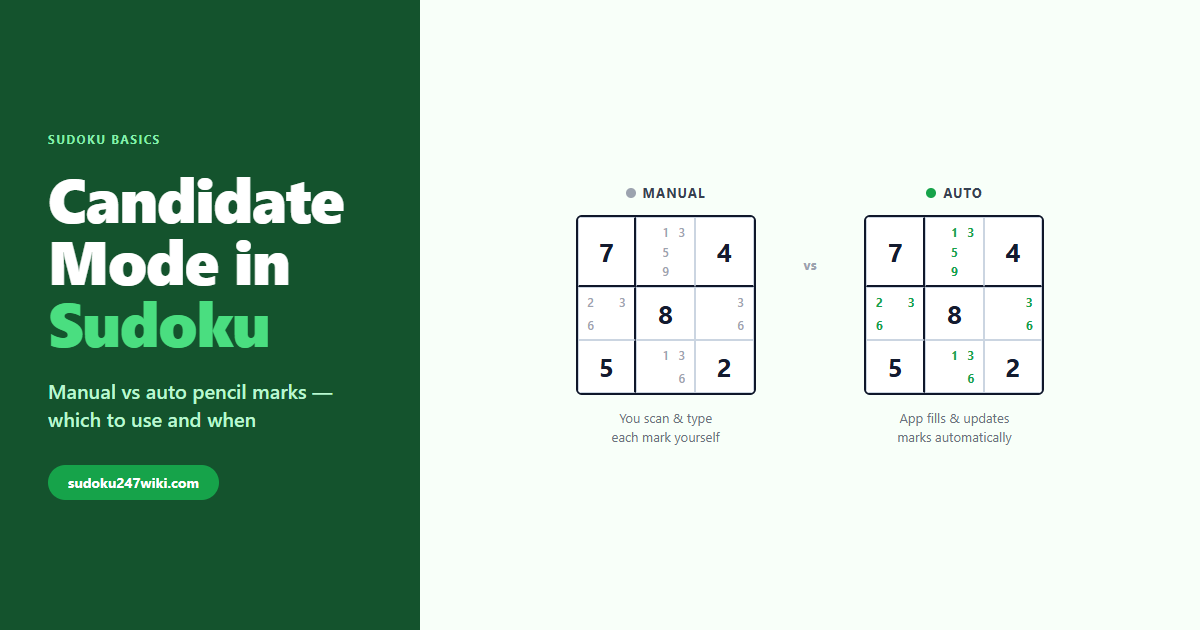
Candidate mode in sudoku is the feature that lets you fill a cell with small “maybe” numbers instead of one final answer. Those little digits — usually shown in a corner or spread across the cell — are the candidates: every value that could still legally go there. Tap a cell in candidate mode and you’re taking notes, not committing to an answer. It’s the same idea as scribbling tiny pencil marks on a paper puzzle, just built into the app.
If you’ve ever spotted a “candidate mode,” “notes,” or “pencil” toggle in a sudoku app and wondered what it does — and whether the auto version is somehow cheating — this guide walks you through all of it: what candidate mode is, the difference between filling those notes manually and letting the app do it, and an honest take on the auto-fill question.
What is candidate mode in sudoku?
Candidate mode is a note-taking mode where the numbers you enter are recorded as possibilities, not as the cell’s solution. A single cell can hold several of these candidates at once. So a cell showing a tiny 2 5 8 is telling you “this square is still one of 2, 5, or 8 — I haven’t pinned it down yet.”
Most apps separate this from your normal “answer” entry with a toggle. In answer mode, typing a 5 means “the answer here is 5.” Flip to candidate mode and typing a 5 just adds 5 to the list of possibles. You build up a map of what’s still allowed in each empty cell, then use logic to cross numbers off until only one survives.
This is exactly how candidates work on paper, where you’d jot the possible digits in light pencil. Reputable solving references call these candidates or pencil marks interchangeably — they mean the same thing. If you want the foundations, our reference on givens and candidates explains how candidates flow from the numbers already on the board.
Manual candidate mode
In manual candidate mode, you decide what goes in each cell. You look at a square, scan its row, column, and box, work out which digits are still legal, and type them in yourself. Nothing updates on its own. When you finally place a number, it’s on you to go back and erase that digit from the cells it now rules out.
That sounds like extra work, and it is — but the work is the point. Filling candidates by hand forces you to actually read the grid. You notice that a box only has two spots left for a 7. You catch a pair of cells that share the same two candidates. Those observations are the building blocks of real solving technique, and you only build them when your eyes do the scanning.
Manual mode is how the classic notation skills are learned. It’s slower at first, but it’s the version that makes you better.
Auto candidate mode
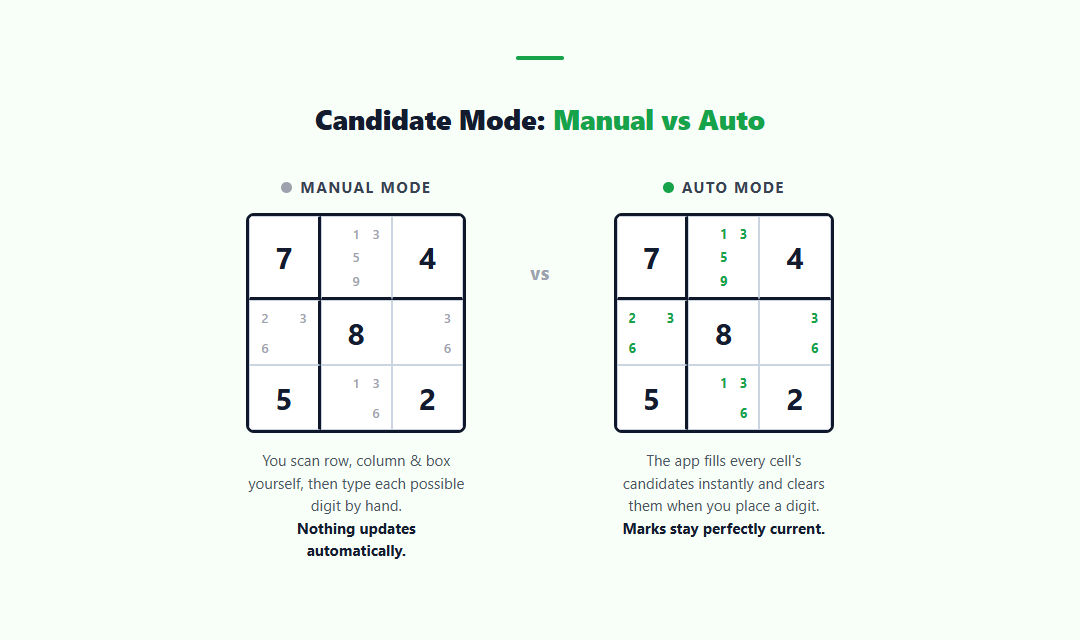
Auto candidate mode hands that bookkeeping to the app. Switch it on and the program instantly fills every empty cell with all its legal candidates — and, crucially, updates them for you. Place a 4, and every cell in that row, column, and box that was showing a 4 quietly drops it. You never have to maintain the marks by hand.
The upside is speed and accuracy. You skip the tedious scanning and the easy-to-miss erasing, so you spend your time on the deductions instead of the housekeeping. On big, hard puzzles — where a single cell might start with six or seven candidates — that saved effort is real.
The trade-off is that auto mode does the part of solving that teaches you the most. When the grid keeps its own notes perfectly, you stop practising the scan-and-eliminate habit that sharpens your eye. It’s a genuine speed-versus-skill choice, and which side you want depends on why you’re playing.
Is auto candidate mode cheating?
No — auto candidate mode is a tool, not cheating. It doesn’t solve the puzzle for you. It only keeps track of which numbers are still possible, which is something you could do yourself with a pencil. Every actual deduction — spotting the lone candidate, the hidden pair, the chain that cracks the grid — is still yours to make. The app holds the notepad; you still do the thinking.
So for casual play, auto mode is perfectly fine. If you just want to relax and enjoy the logic without the clerical work, turn it on and don’t feel guilty.
The honest catch is this: you learn less. Because auto mode does the candidate-tracking for you, you never build the scanning instinct that lets you solve harder puzzles — or any puzzle on paper, where no app is going to update your marks. Established solving guides put it plainly: auto-fill is helpful, but lean on it exclusively and it becomes a crutch that slows your progress. It’s not cheating; it’s just training wheels. Useful, until they hold you back.
When to use which
There’s no single right answer — match the mode to your goal:
- Use manual candidate mode when you’re learning. If you want to get better, do the scanning yourself. Slower now, but it’s the only way to grow the instincts that crack harder puzzles.
- Use auto candidate mode for speed and for very hard grids. When you already know the techniques and you’re chasing a fast time — or untangling an expert puzzle with a dozen candidates per box — let the app handle the bookkeeping so you can focus on the logic.
- Mix it up. Many players start manual to build skill, then switch to auto once the notation is second nature. Some keep manual for paper-style practice and auto for casual phone sessions.
New to all of this? Start with the fundamentals in how to play sudoku, then come back to candidate mode once the basic rules feel comfortable.
Candidate mode vs pencil marks
Candidate mode and pencil marks are two names for the same thing — people just use them in different places. “Pencil marks” comes from paper sudoku, where you literally pencil in the possible digits. “Candidate mode” is the app’s name for the feature that lets you make those marks on screen. The marks themselves are the candidates either way.
So when an app says candidate mode, it means: the mode for entering pencil marks. The only real wrinkle is the manual-versus-auto split we covered above, which only exists digitally — on paper, your pencil marks are always “manual,” because no one updates them but you. For a deeper look at the notation itself, see our reference on sudoku pencil marks.
Frequently asked questions
Does candidate mode make sudoku easier?
It makes solving more organised, not strictly easier. Candidate mode lets you track every cell’s possibilities in one place instead of holding them in your head, so you make fewer mistakes and spot patterns sooner. The deductions are still yours to make — the puzzle isn’t any simpler, you’re just better equipped to work through it. Auto candidate mode adds the most help, since the app maintains the notes for you.
Do experts use auto candidate mode?
Many do, especially for speed and for very hard puzzles. Once you’ve mastered the techniques, manually maintaining a dozen candidates per cell is just tedious bookkeeping, so experts often let the app handle it and spend their attention on the logic. But plenty of strong solvers learned on manual marks first — and many still solve manually (or on paper) to keep their scanning sharp. Auto mode is a convenience for people who already have the skill, not a substitute for it.
What’s the difference between candidate mode and pencil marks?
There isn’t one, really — they’re the same concept under two names. “Pencil marks” is the paper term for the small possible-digit notes you write in a cell; “candidate mode” is the app feature that lets you enter those same notes on screen. The candidates are the marks. The one difference unique to apps is the choice between filling them manually and letting the app fill and update them automatically.
More from the blog
- What Does Sudoku Mean? Pronunciation, Origin & HistoryHow do you pronounce sudoku, and what does it mean? It’s “soo-DOH-koo” — Japanese for “single number.” Here’s the meaning, origin and short history.
- Stuck on a Sudoku? Here’s Exactly What to Try NextStuck on a sudoku with no obvious move? Work through this ordered checklist — re-scan, pencil marks, locked candidates, pairs — to break the deadlock.
- Killer Sudoku Cheat Sheet: Every Cage Sum CombinationThe complete killer sudoku cheat sheet: every 2-, 3- and 4-cell cage sum and its possible digit combinations, plus how to use the tables to solve faster.
Practice online
Put it into practice on free puzzles with hints, notes and four difficulty levels.
Play Sudoku